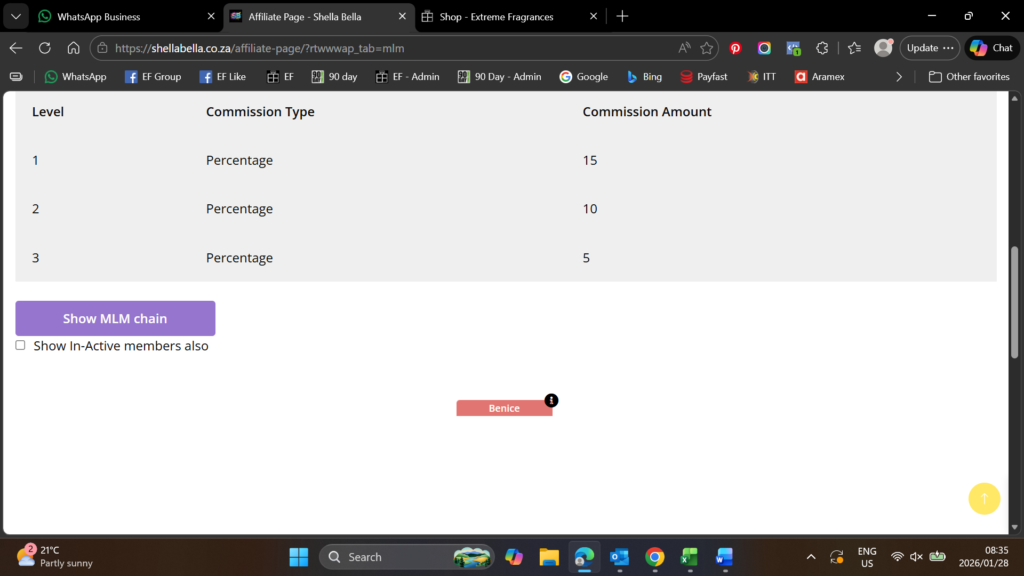
Once you have signed up you will be able to go your Affiliate Page, which will look like the one shown below (Please note that we only recently loaded this program and should there be any teething problems we will sort them out from there):
- Overview: This is a quick view of everything happening on your side
- Commissions: This show how much commission you will be paid on different items/categories
- Affiliate Tools: Here you will be able to set up a link to advertise with for the entire website or for just a certain product (We will go deeper into this below)
- Download: Here you can download items to a csv file (Easy for if you need to upload it again to your own website etc.)
- Payout: Here you can request to have your commission paid out to you via Direct Transfer – when you click on that there will be a block to enter bank details for your payment
- Profile: Pretty simple it is where your username can be found and passwords can be changed
- MLM: Here you can see the commission you will earn on levels of Resellers you sign up as well as get a report on your downline Team (We will look into this below in more detail as well)
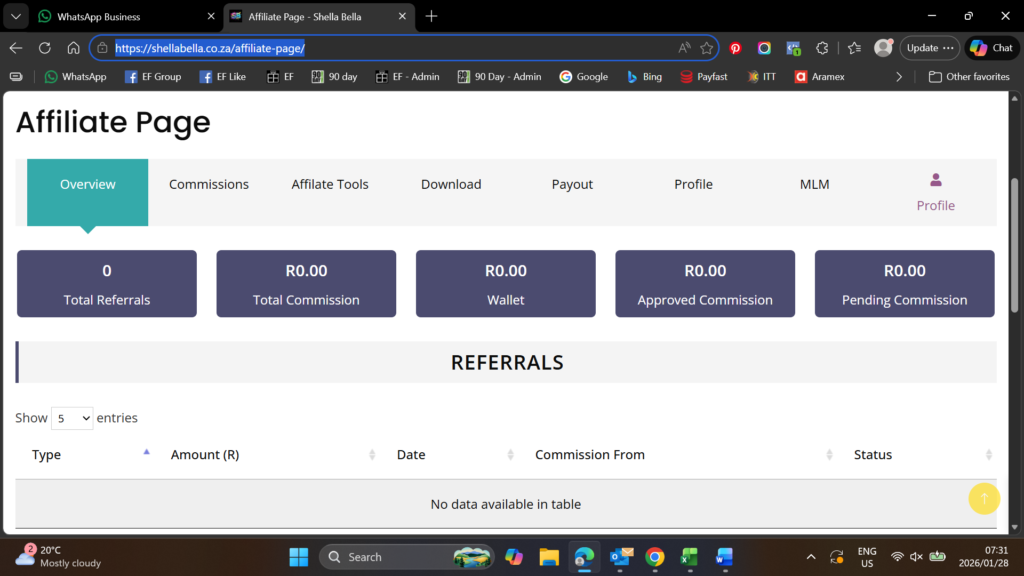
Let’s Look a Little Deeper into the Affiliate Tools:
- Below you will see “Generate Links” this already has our Shella Bella website address in, when you click directly on Generate Link you will see that it changes to give you your own special link to use for advertising (See Image A below)
- You will also see the Heading “Create Banners Below” – here you can click on the Category you would like to create a banner for (See Image B for example)
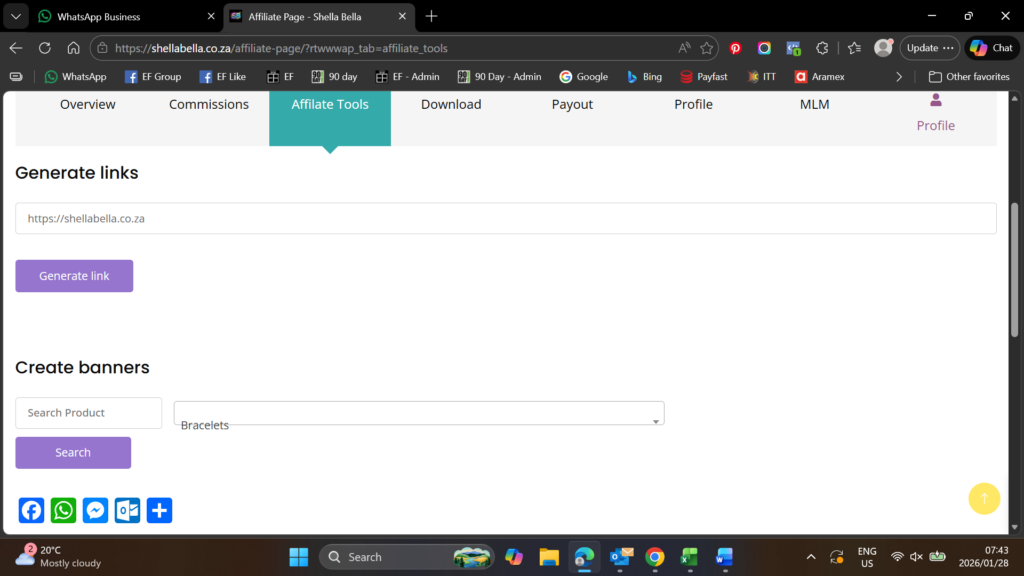
Image A: You can now click on copy Link to use it or generate a QR Code (Which is then used for people to scan – that can be sent via whatsapp or used on advertising or put onto your own website)
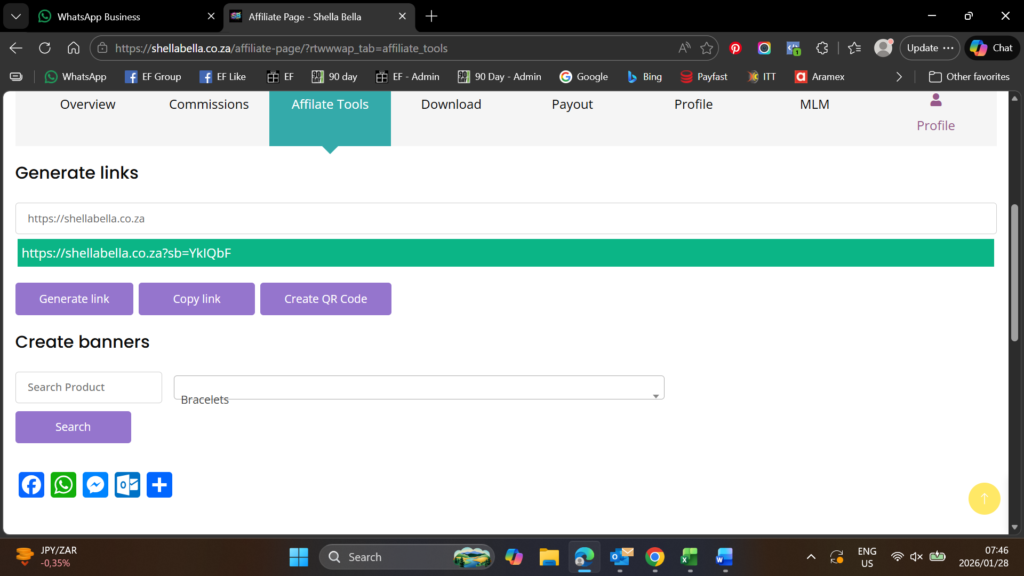
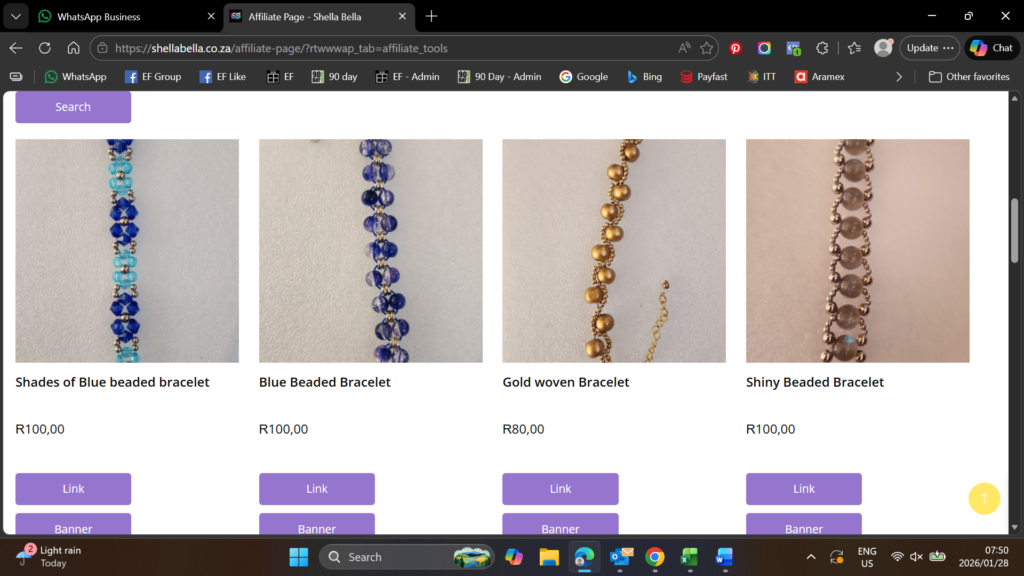
Image B: When I click on Bracelets and search then I get the image below (And then you can click on link to get the link for a specific product or banner to get a banner for that product – Banners work best on advertising on your website)
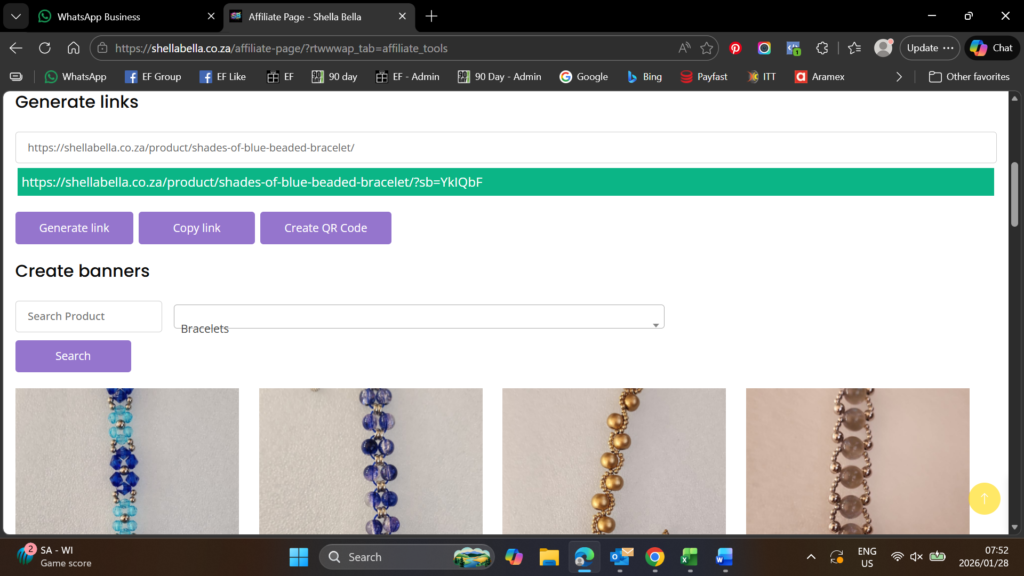
When I click on Link on the first Item here then this is what happens: (From here you can now copy the link for that specific item to advertise with)
When I click on Banner then the below is displayed, here you can change the colour of the banner to suit your website and you can either click on copy the script or copy html, which you will then use to advertise with on your own website (To place it on your website is a complete different set of training, which I would suggest you chat to your service provider about to assist you)
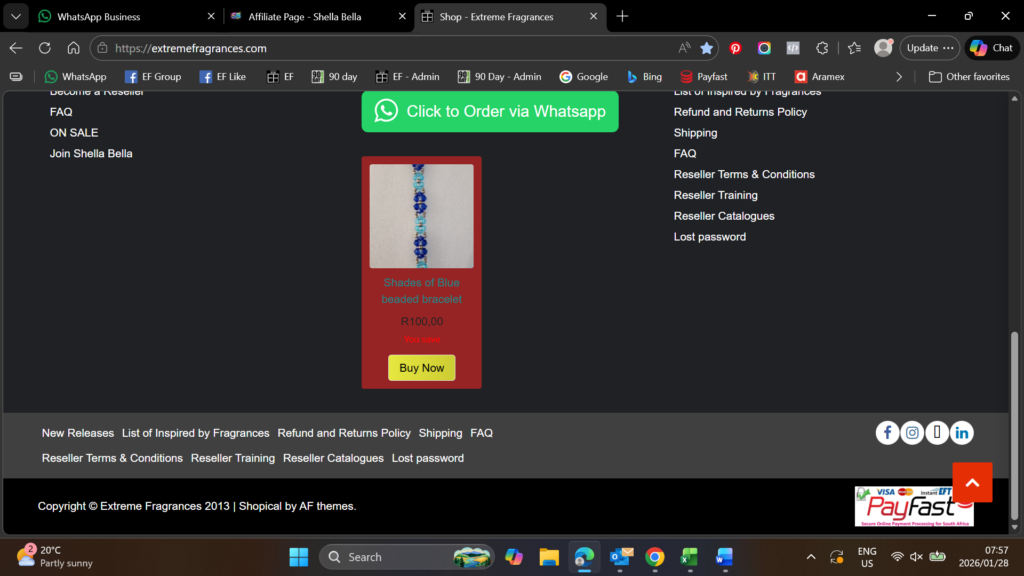
Here I have just added the banner as a html to my other website to show the example
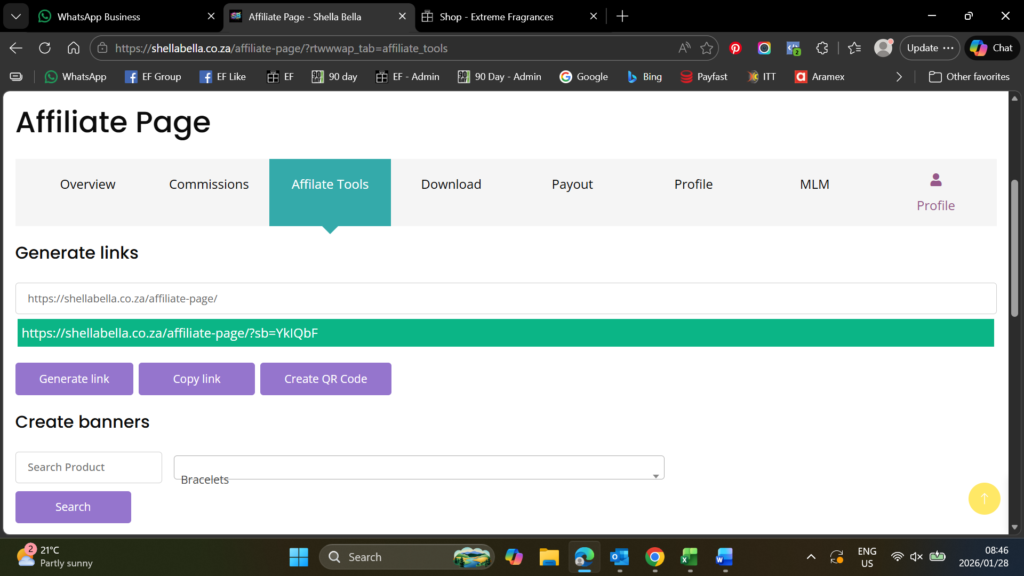
Let’s say you want to add a link for someone to come and sign up to be your downline – the click on the page (eg. Earn with us, copy that link and then add that link to the Affiliate page and click generate) – See below (Note: The link below is mine, you need to do the same on your side)
Let’s Dive deeper into the option of MLM – which means having your own sales Team
- As you can see below there are different commission for different levels
- You will be the PARENT (your commission totals you can see if you click on Commissions on the front end Overview)
- Now if you have someone that joins via your link then they will be level 1 (When they get someone that will become your Level 2 and so on) – Summary: People from your link will be Level 1, people from Level 1 link will become your Level 2 and people from Level 2 link will become your Level 3 Link: This means you will earn commission on your own Sales as well as 3 levels down sales
- If you click on Show MLM Chain you will see that it shows me currently as the Parent (That would be as the system is now pretty new and I have no Resellers in my line yet, but once I do they will display below